Simple Authentication
Overview
Integrate SafeSquid SWG with Microsoft Active Directory using LDAP simple authentication to enforce user-specific web access policies without deploying SSO or Kerberos. This setup enables centralized identity management, real-time LDAP-based user validation, and group-aware access control, all without modifying the AD schema. With support for transient session handling, efficient group caching, and resilient LDAP connectivity, SafeSquid ensures compatibility across distributed enterprise environments where policy mapping and user verification are critical, especially when infrastructure modifications are restricted.
Prerequisites
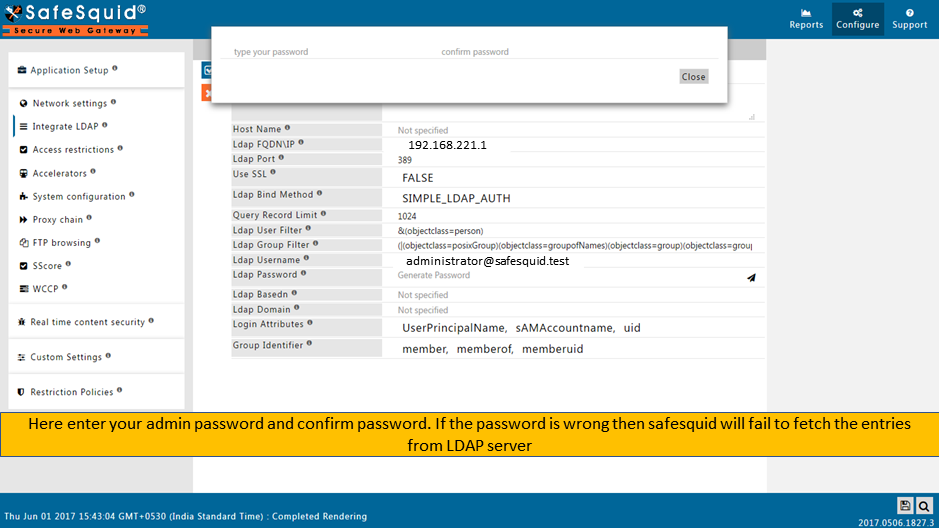
Make sure that all the values (LDAP server FQDN, LDAP server IP, Username, password, base dn, domain ) in configuration are correct. If any value is wrong SafeSquid will fail to fetch the entries.
LDAP Configuration Steps
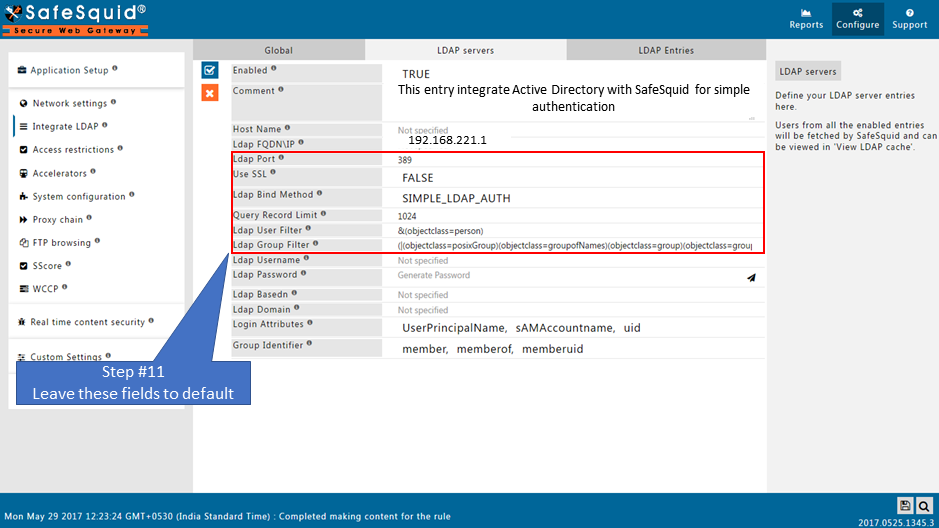
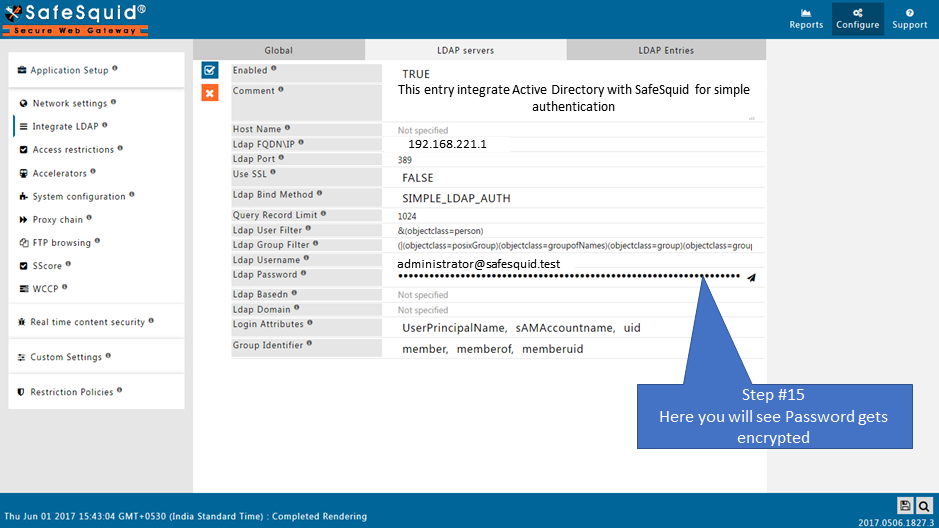
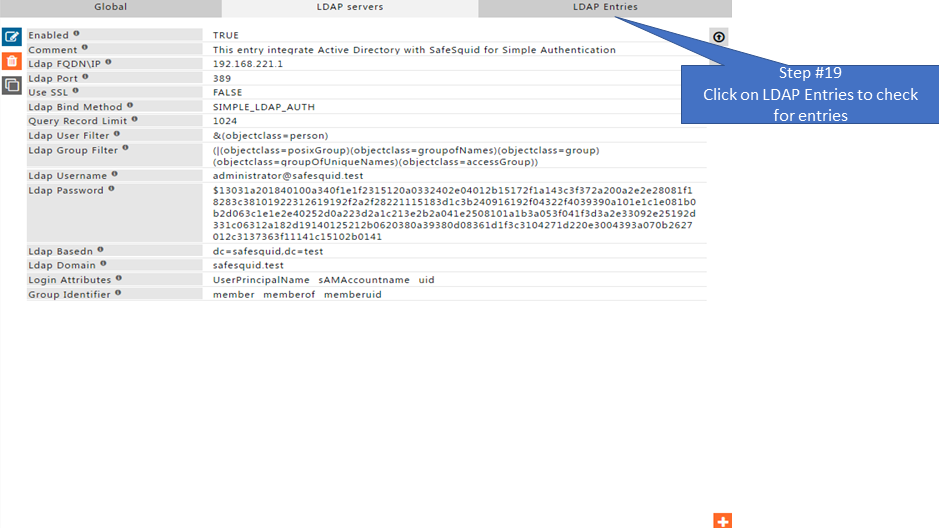
Here I am integrating my Active Directory with following information.
- Active Directory FQDN : ad.safesquid.test
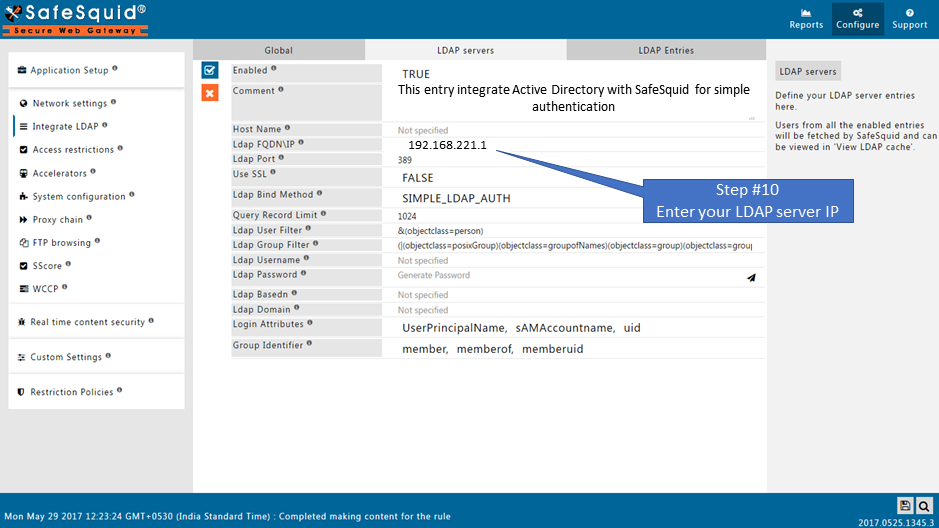
- IP Address : 192.168.221.1
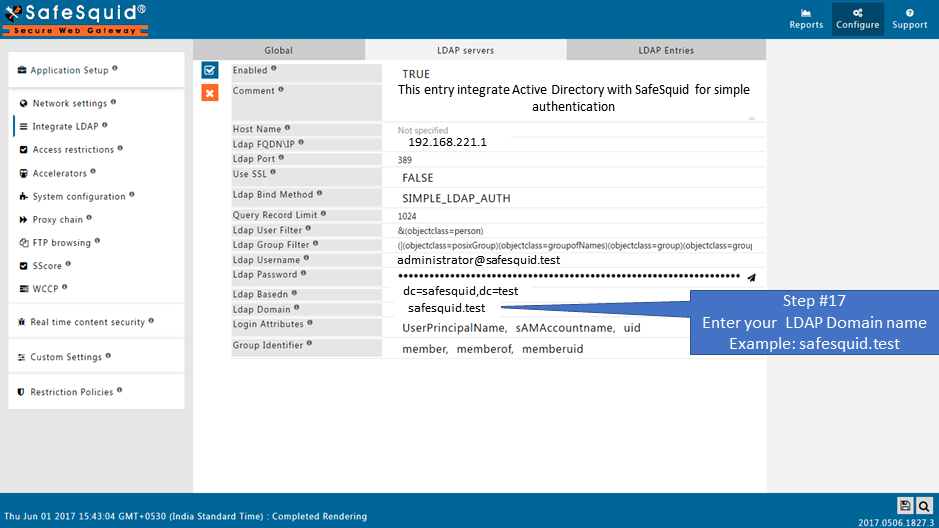
- Domain of Active Directory : safesquid.test
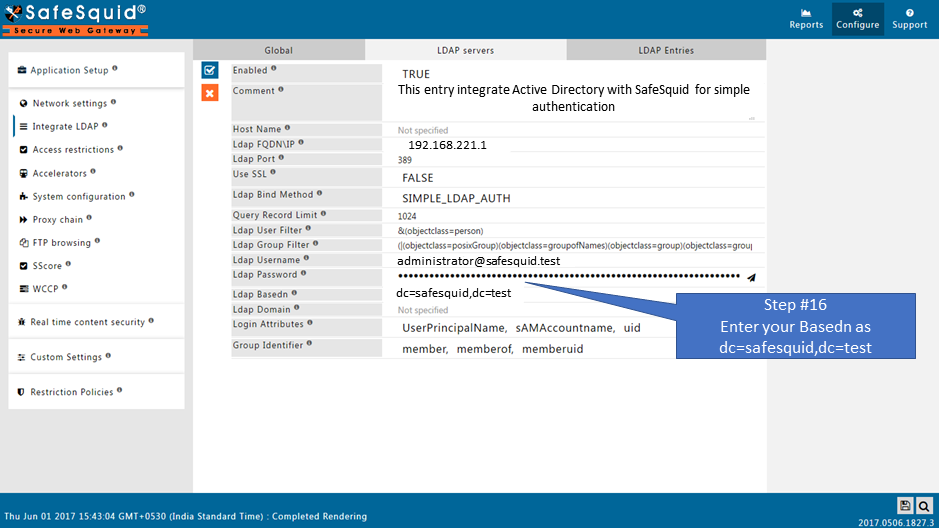
- Base Dn : dc=safesquid,dc=test
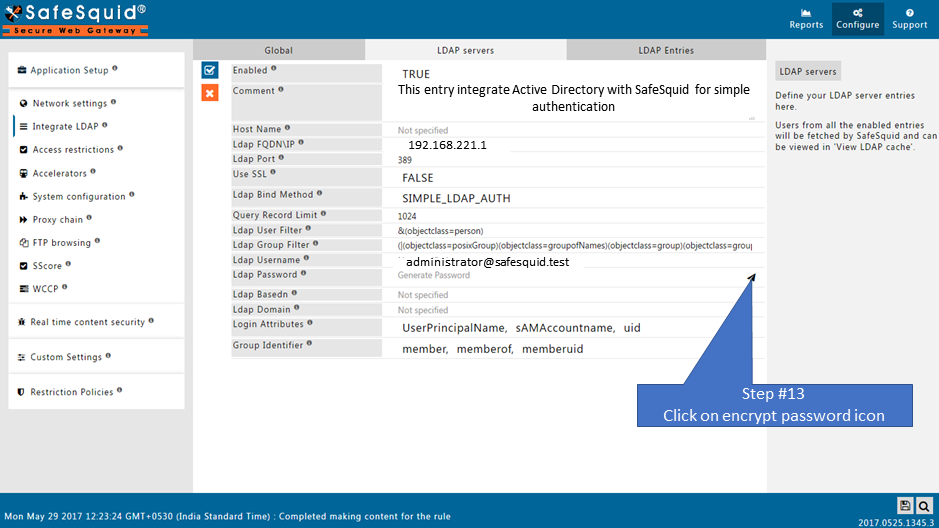
- Username : administrator@safesquid.test
Access the SafeSquid User Interface
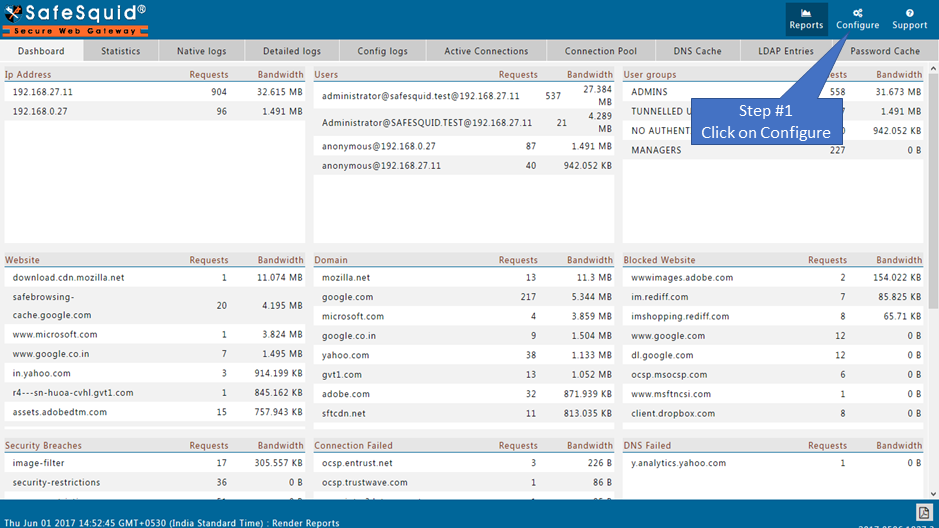
Go to Application Setup
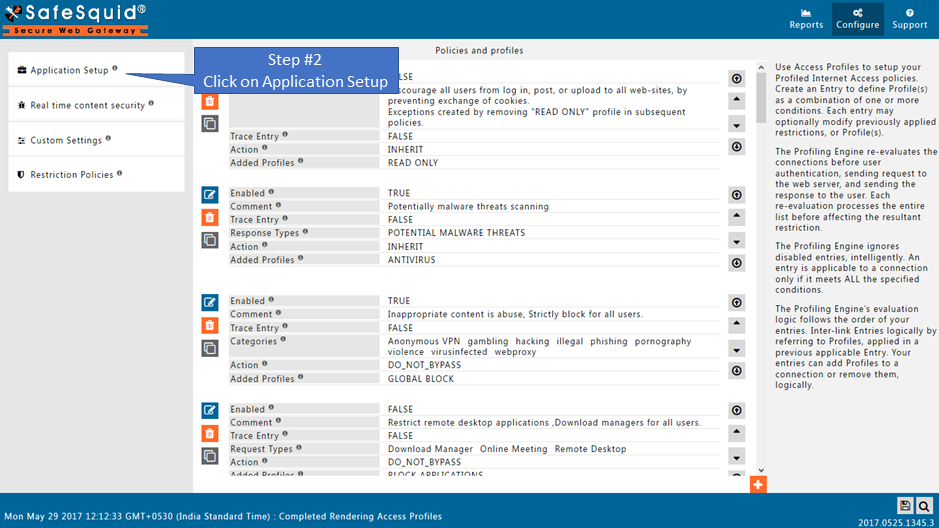
Go to Integrate LDAP
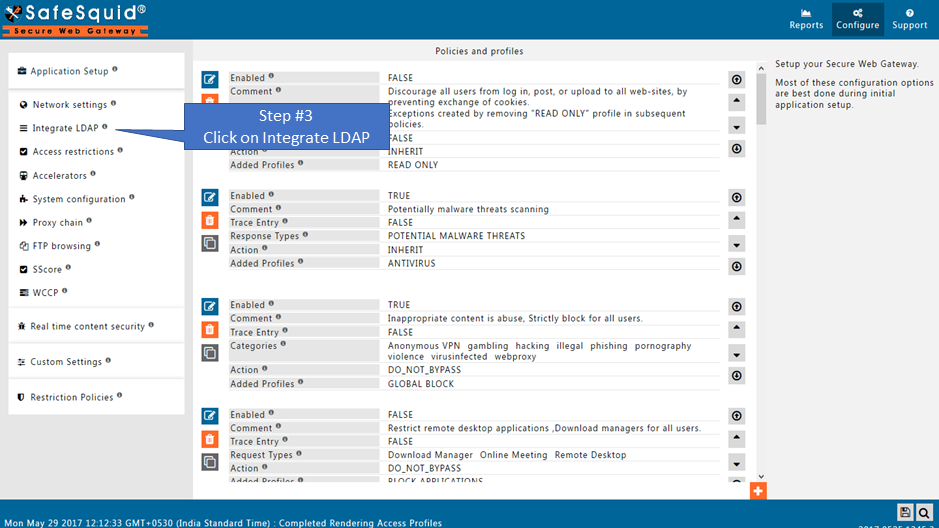
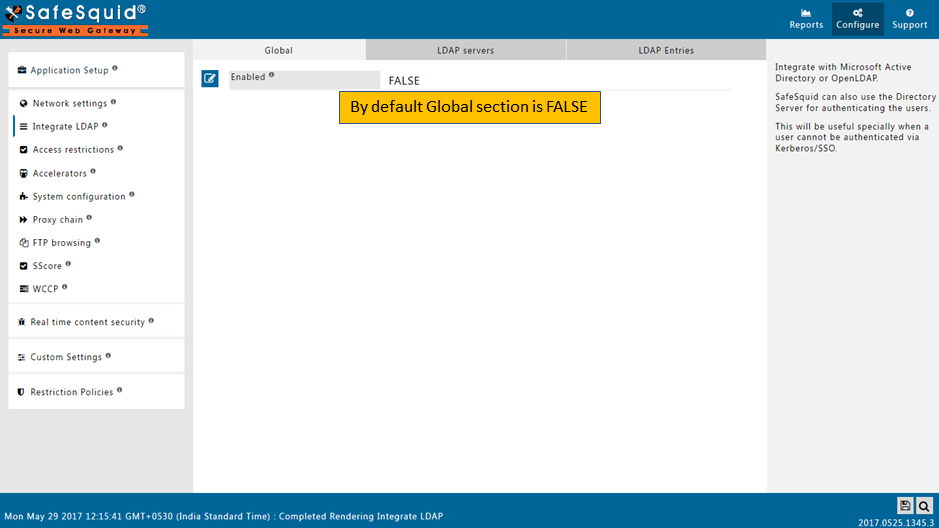
Ensure LDAP Section is Enabled
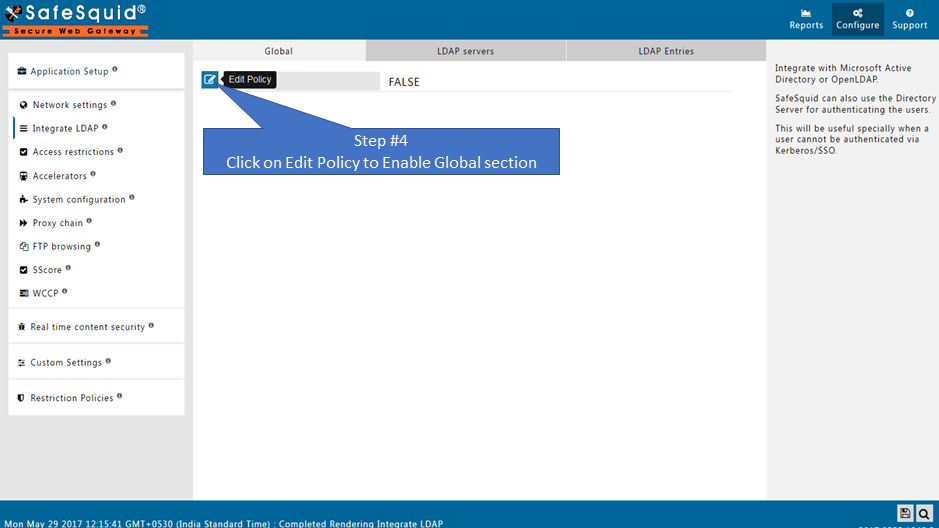
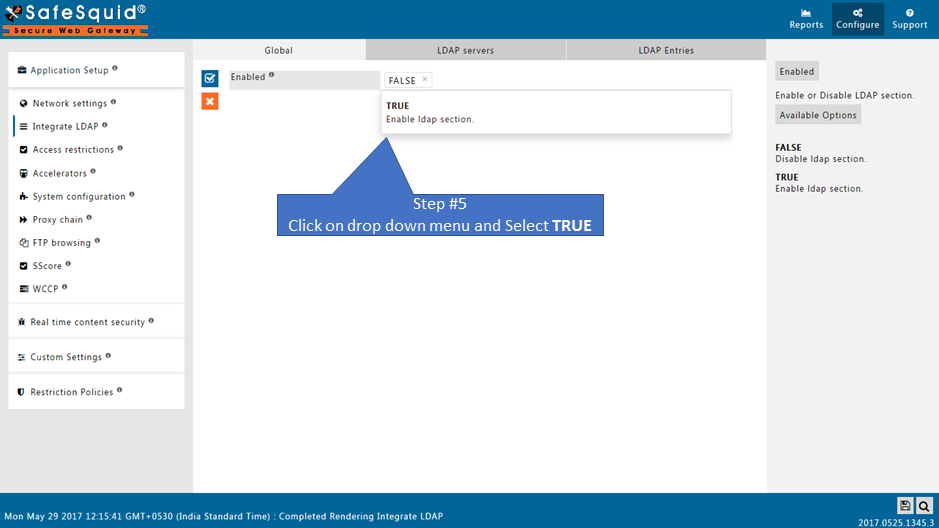
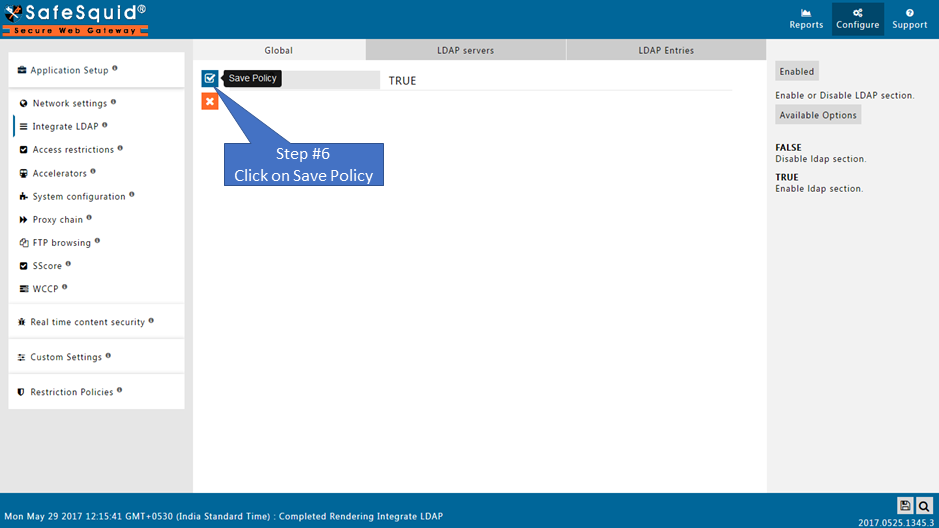
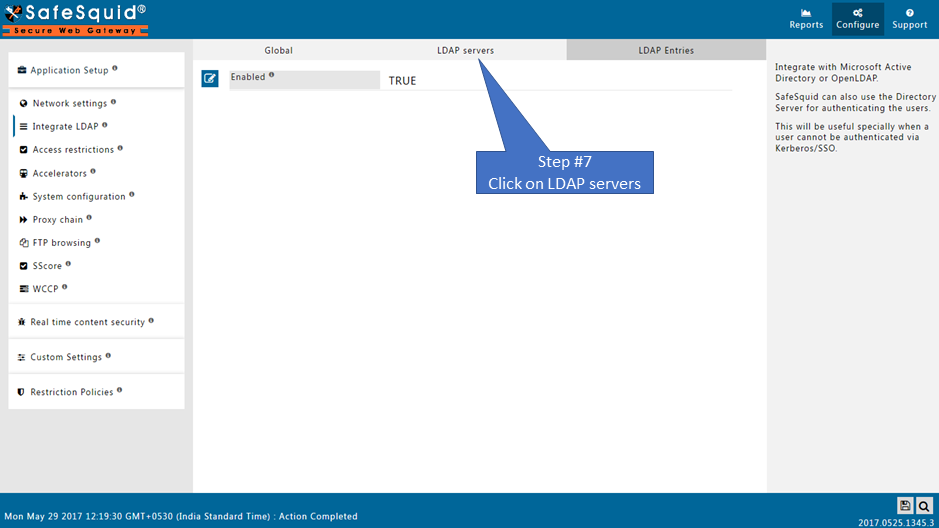
Go to LDAP Servers
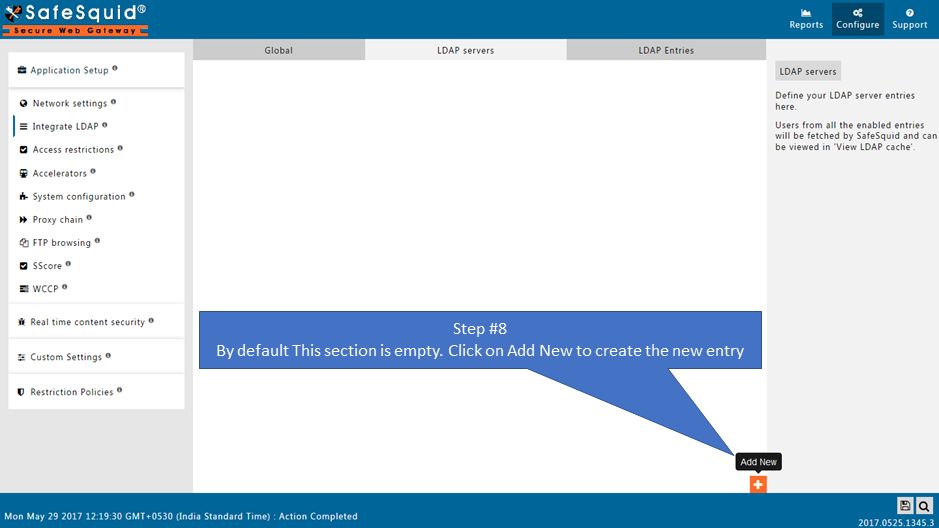
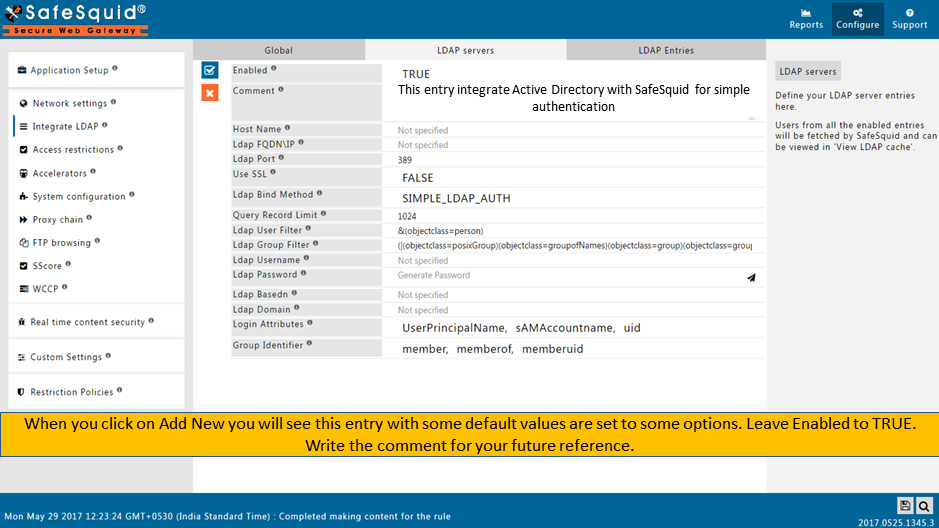
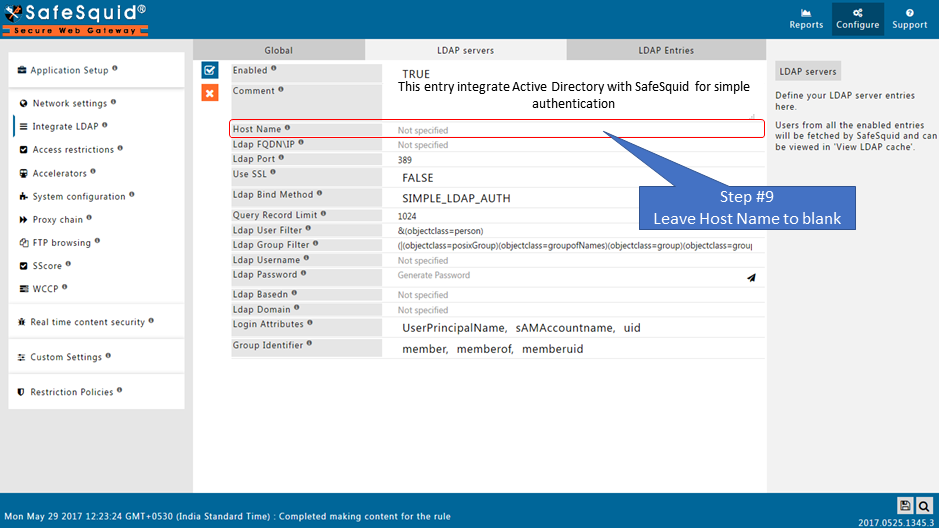
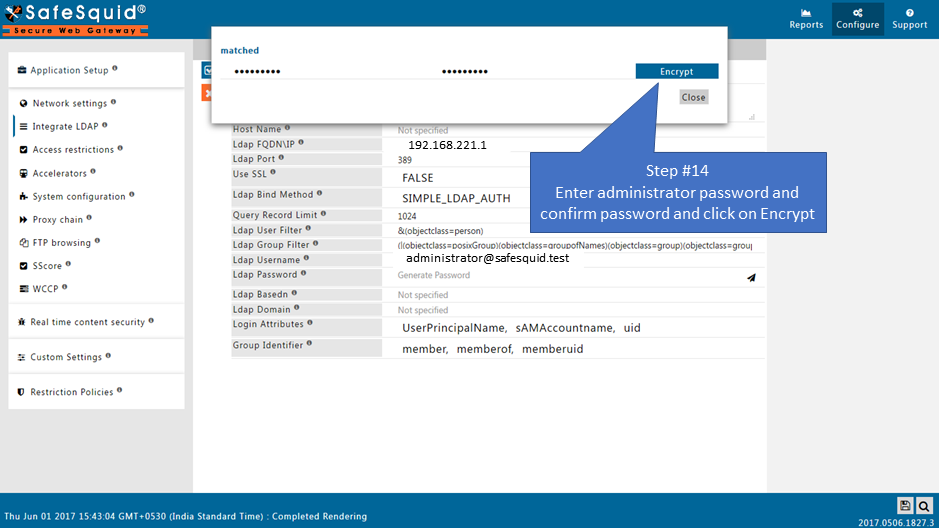
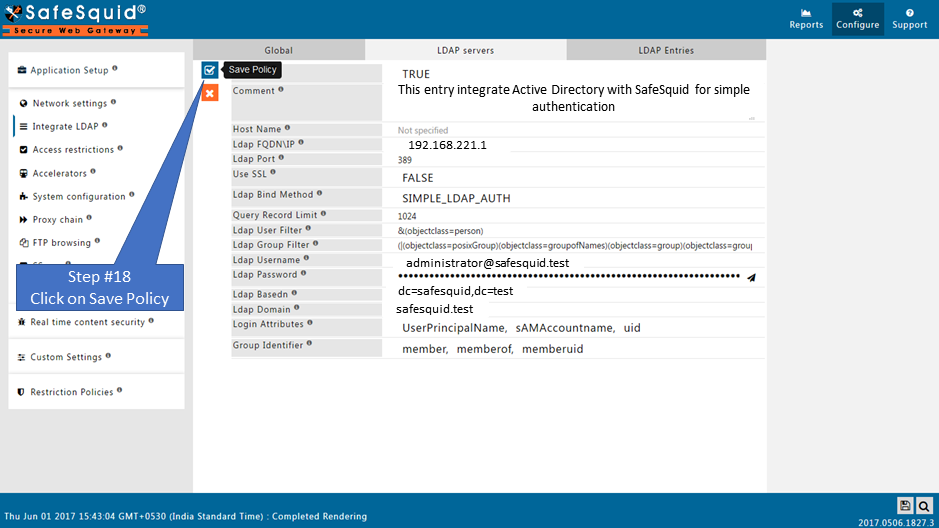
Create the New Entry

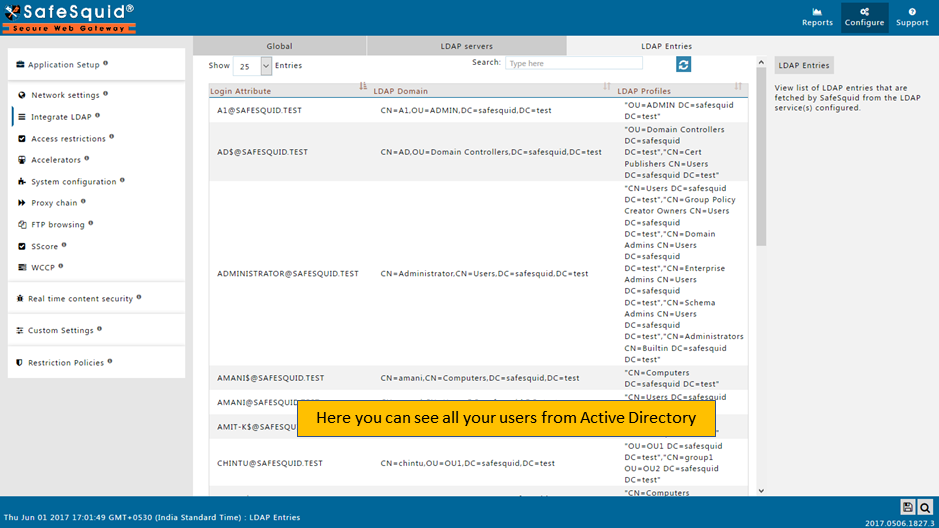
Test User Extraction
Save Configuration
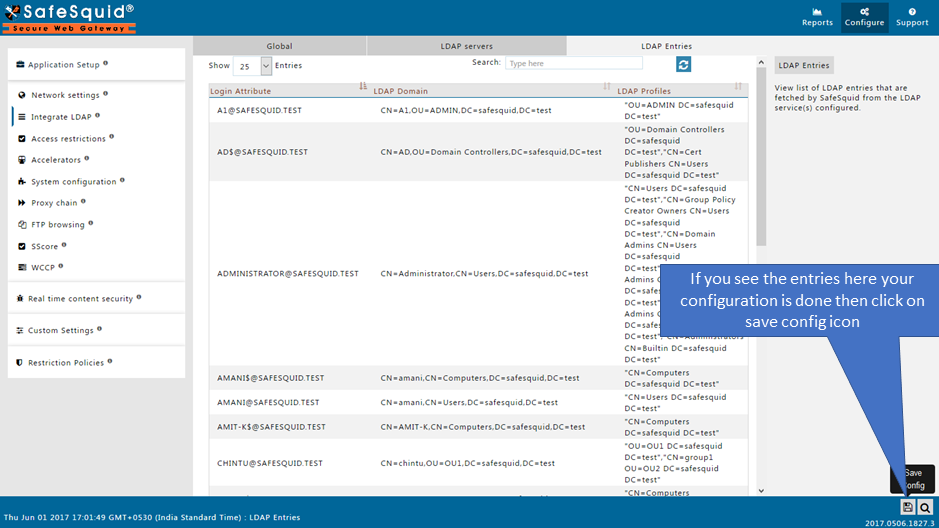
When you click on Save config, it will give a prompt for asking the confirmation to store your configuration into the cloud. Select Yes only in below cases:
- If you want to use this same configuration in other SafeSquid instances.
- If your total configuration in all sections is completed and validated.
- Otherwise, select No and click on submit.
Validation Checklist
| Task | Method | Expected Outcome |
|---|---|---|
| Test User Extraction | Use UI extraction tool | List of user DNs displayed |
| Proxy Authentication | Access web via proxy with AD credentials | Login success |
| Log Review | /var/log/safesquid.log or Real-Time Logs | LDAP bind, group sync, auth OK |
| Connection to LDAP | ping <host>, ldapsearch command-line tests | Success responses |
Example ldapsearch command:
ldapsearch -x -h 192.168.1.10 -b "dc=example,dc=local" -D "administrator@example.local" -w password
Troubleshooting Guide
No LDAP Entries Fetched
- Cause: Incorrect Base DN or Bind DN, wrong password, network failure
- Fix: Run
ldapsearchto test configuration, check host reachability
Authentication Fails
-
Cause: Wrong Bind DN format, credential mismatch, date/time skew
-
Fix:
- Ensure Bind DN uses full UPN (e.g., user@example.local)
- Sync system time via
ntpdate - Check real-time logs for error details
Group Membership Missing
- Cause:
memberOfattribute not visible - Fix: Use higher privilege bind account, ensure group visibility in AD
SafeSquid UI Shows Empty or Failure in Extraction Test
- Cause: Incorrect filters or AD object not reachable
- Fix: Adjust filters; use LDAP browser tool to validate user location